How to Disable Gemini Assistant on Android
Understanding the Gemini Assistant
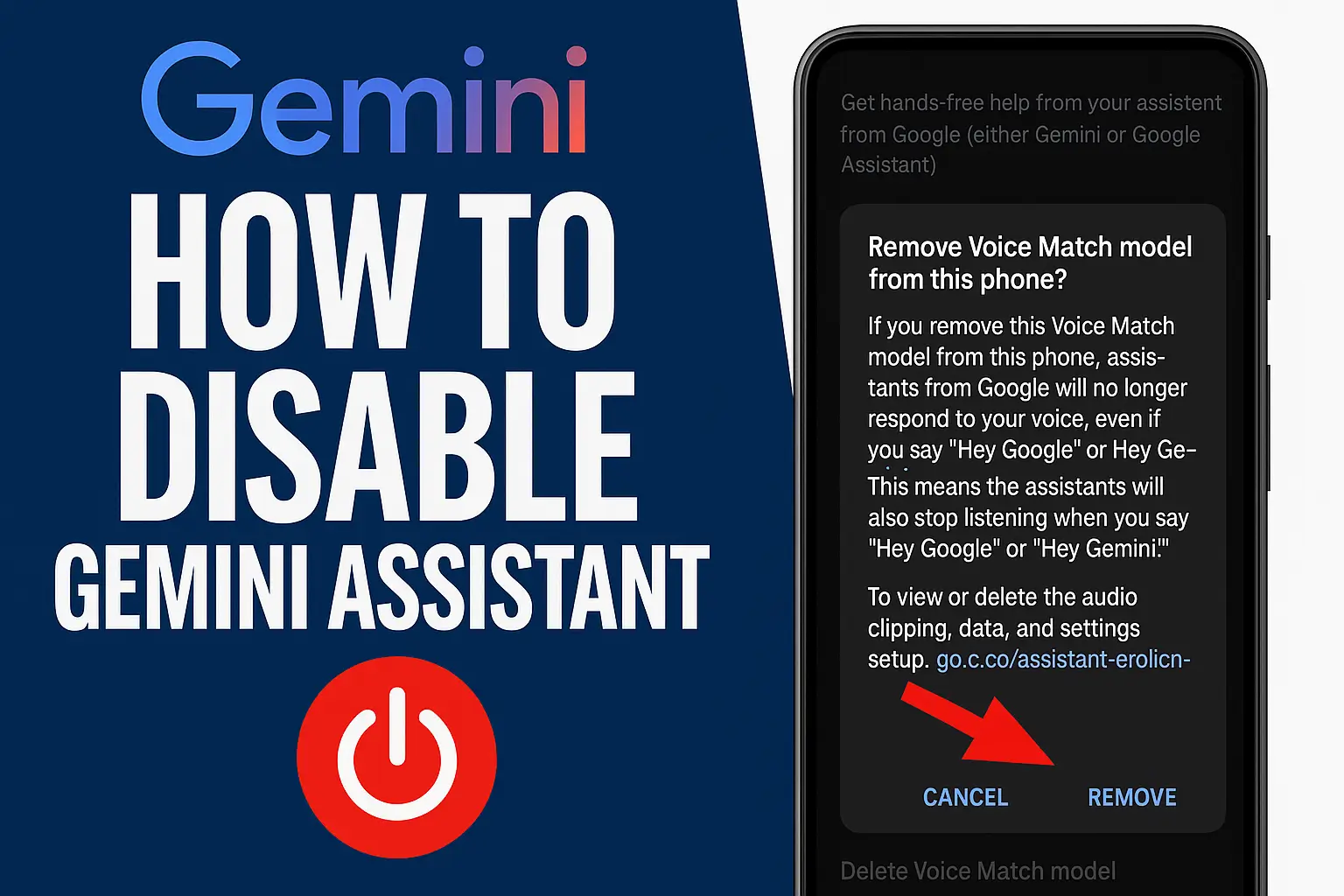
Gemini, Google’s next-generation AI assistant, represents a leap forward in Android interactivity. Built on multimodal AI models, it processes voice, text, and images simultaneously, offering unparalleled contextual understanding. Integrated deeply with Google’s ecosystem—Gmail, Calendar, Maps, and more—Gemini excels in tasks like drafting emails, summarizing documents, or translating languages in real-time. According to Android Authority, Gemini’s rollout in 2024 faced challenges like inconsistent regional availability, impacting user adoption.
Unlike Google Assistant, which uses older AI frameworks, Gemini leverages generative AI to deliver creative, adaptive responses. For example, it can generate a travel itinerary from a photo of a destination or answer nuanced questions like “Compare the cultural significance of Diwali and Lunar New Year.” However, its complexity can overwhelm users who prefer Google Assistant’s simplicity for tasks like setting reminders or controlling smart lights, as noted by TechRadar.
Gemini’s resource demands can strain older or mid-range devices (e.g., a 2022 Samsung Galaxy A53), leading to battery drain or lag. Accessibility features, like screen reader compatibility, may also be less refined compared to Google Assistant’s mature implementation. This guide provides a comprehensive, step-by-step process to disable Gemini and revert to Google Assistant, covering Android versions (12–15) and manufacturers (Samsung, Xiaomi, Oppo, Vivo). We address edge cases, offer pro tips, and include troubleshooting for a seamless transition.
Pro Tip: Visit Google’s Assistant Support for the latest feature comparisons between Gemini and Google Assistant to make an informed choice.
Why Disable Gemini Assistant? User Motivations
Disabling Gemini in favor of Google Assistant is driven by diverse user needs. Below, we detail common reasons with examples to guide your decision:
- Familiarity and Comfort: Google Assistant, launched in 2016, is a trusted companion. Users accustomed to commands like “Open Spotify” or “Text Dad” may find Gemini’s verbose responses jarring. For instance, a user asking for weather might receive a detailed forecast from Gemini, while Google Assistant provides a concise answer.
- Feature Parity Concerns: Gemini may lack Google Assistant’s niche features, like custom “Routines” for automating tasks (e.g., dimming lights at 9 PM). Integrations with apps like Philips Hue or Todoist may also be less robust, as per XDA Developers.
- Performance Issues: Gemini’s AI demands can cause lag or battery drain on devices with limited RAM (e.g., 4GB). Users on a OnePlus Nord CE might notice slower voice responses compared to Google Assistant’s optimized performance.
- Privacy Concerns: Gemini collects extensive data (voice, location, app usage) to personalize responses, raising privacy questions. Google’s Privacy Policy details protections, but users in sensitive fields (e.g., law) may prefer Google Assistant’s established data practices.
- Accidental Activations: Gemini’s sensitive triggers (e.g., “Hey Google” or edge squeezes on Pixel) can activate during conversations, disrupting workflows. Google Assistant’s refined sensitivity minimizes this, ideal for busy environments.
- Regional/Language Limitations: Gemini’s language support is evolving but may lag for dialects like Tamil or Swahili, where Google Assistant excels, per Android Authority.
- Accessibility Concerns: Google Assistant’s mature accessibility features, like Voice Access or screen reader support, are more refined than Gemini’s, crucial for users with disabilities.
- App Ecosystem Compatibility: Some third-party apps (e.g., older smart home apps) may only support Google Assistant, limiting Gemini’s utility.
Pro Tip: Test Gemini in a low-stakes environment (e.g., asking for recipes) to assess its fit before fully committing or disabling it. Check Android Central for creative Gemini use cases.
Comparing Gemini and Google Assistant
To aid your decision, here’s a detailed comparison of Gemini and Google Assistant based on key metrics:
| Feature | Gemini | Google Assistant |
|---|---|---|
| AI Capabilities | Multimodal (voice, text, image); generative AI for creative responses | Voice and text; reliable but less advanced |
| Performance | Resource-heavy; may lag on older devices | Optimized for all devices; lightweight |
| Smart Home Integration | Improving but inconsistent with some devices | Robust, supports most IoT devices |
| Accessibility | Developing; limited screen reader support | Mature; excellent Voice Access, screen readers |
| Language Support | Strong for major languages; weaker for dialects | Broad support, including regional dialects |
| Customization | Fewer options; evolving | Granular control (Routines, Voice Match) |
Pro Tip: Use Google’s Explore Assistant page to discover Google Assistant’s unique features, like Easter eggs or productivity shortcuts, to maximize its utility post-switch.
How to Revert: Disabling Gemini Assistant on Android
This guide provides a universal process to disable Gemini and revert to Google Assistant, with variations for Android 12–15 and manufacturers like Samsung, Xiaomi, Oppo, and Vivo. Edge cases, such as custom ROMs, are also addressed, inspired by XDA Developers.
Important Note: Disabling Gemini sets Google Assistant as the default for voice commands. Gemini’s AI may still power background features (e.g., Google Lens). This reflects Google’s AI integration strategy and does not fully remove Gemini.
1. Accessing Google Assistant Settings
The Google app is the primary hub for assistant settings:
- Open the Google App: Locate the “G” logo on your home screen or app drawer. On Oppo devices, it’s often in a “Google Apps” folder; on Vivo, check “System Apps.”
- Tap Your Profile: Find your profile picture/initial in the top-right. Swipe down if hidden (common on Xiaomi’s MIUI).
- Navigate to Settings: Select “Settings” (labeled “Google Settings” on Vivo). On custom ROMs, it may be under “Account Services.”
Pro Tip: If the Google app is missing, download it from the Google Play Store. On custom ROMs, ensure Google Play Services is installed.
2. Accessing Assistant Settings
Locate the Google Assistant settings:
- Find Google Assistant: Scroll to “Google Assistant” (under “Assistant & Voice” on Oppo; “Google Services” on Samsung). Tap to enter.
3. Navigating to Default Assistant Settings
Access the default assistant setting:
- Tap General: Find “General” (under “Assistant Behavior” on Vivo; prominent on Pixel). Tap to proceed.
4. Changing the Default Assistant
Switch to Google Assistant:
- Identify Current Default: Check for “Gemini” (labeled “Voice Assistant” on Samsung’s One UI).
- Tap to Change: Tap “Gemini” to view available assistants.
- Select Google Assistant: Choose “Google Assistant,” avoiding third-party options like Bixby or Alexa.

Important Note: On custom ROMs (e.g., LineageOS), ensure Google Assistant is installed via GApps. Some ROMs default to no assistant, requiring manual setup.
5. Confirming the Switch
Finalize the change:
- Review Prompt: Check the confirmation dialog for app integration impacts.
- Confirm: Tap “OK” or “Confirm.” Oppo devices may require additional permissions.
- Test Assistant: Use “Hey Google” or a gesture to test commands like “Play news” or “Set an alarm.” Success confirms the switch.
Pro Tip: Enable developer options (Settings > About Phone > Tap Build Number 7 times) and check “USB Debugging” logs to diagnose assistant issues. Use Google’s Developer Portal for advanced troubleshooting.
Troubleshooting Common Issues
Issues may arise due to firmware, network, or app conflicts. Below are tailored solutions:
Issue 1: Google Assistant Not Listed
Caused by outdated apps, regional locks, or ROM restrictions.
Solution:
- Update Apps: Update Google app and Google Play Services via Play Store. On Vivo, check “V-Appstore” for updates.
- Clear Cache: Navigate to Settings > Apps > Google > Storage > Clear Cache. Clear data on Samsung after backing up.
- Check Compatibility: Verify Android 5.0+ support on Google’s Support. Install GApps on custom ROMs.
Issue 2: Gemini Persists After Switching
Caused by conflicting settings or standalone Gemini app.
Solution:
- Verify Settings: Re-check default assistant. On Oppo, disable “HeyTap Assistant” interference.
- Disable Gemini: Go to Settings > Apps > Gemini > Disable. On Samsung, disable “Gemini Integration” in One UI.
- Restart: Reboot device. On Vivo, “Force Stop” Google app first.
Issue 3: Performance Issues Post-Switch
Sluggishness or battery drain may occur.
Solution:
- Update System: Check Settings > System > Software Update. Oppo devices may need “ColorOS” updates.
- Optimize Battery: Restrict Google app in Settings > Battery > Battery Usage. Use “Battery Saver” on Vivo.
- Factory Reset: Reset via Settings > System > Reset Options after backup. On Oppo, use “Backup & Restore.”
Issue 4: Network Dependency Issues
Gemini or Google Assistant may fail without stable internet.
Solution:
- Check Connectivity: Ensure Wi-Fi or mobile data is active. On Xiaomi, toggle “Data Roaming” if abroad.
- Offline Mode: Enable Google Assistant’s offline capabilities in Settings > Google Assistant > Offline Speech Recognition.
Pro Tip: Join Google’s Assistant Community to share issues and solutions with other users.
Optimizing Google Assistant Post-Switch
Maximize Google Assistant’s potential with these optimizations:
- Voice Match: Train voice recognition in Google Assistant Settings > Voice Match for accurate detection.
- Continued Conversation: Enable in Settings > Continued Conversation for seamless follow-ups.
- Routines: Automate tasks in Settings > Routines (e.g., morning briefings).
- Sensitivity: Adjust in Settings > Hey Google & Voice Match > Sensitivity.
- App Integrations: Link Spotify, Hue, etc., in Settings > Services.
- Accessibility: Enable Voice Access in Settings > Accessibility for hands-free control.
Pro Tip: Use Google Assistant’s “What can you do?” command to discover hidden features, like language learning or mindfulness exercises.
Exploring Alternative Assistants
Consider these third-party assistants if neither Gemini nor Google Assistant suits you:
- Amazon Alexa: Excels in smart home control and Amazon services but lacks deep Android integration. Ideal for Echo users.
- Samsung Bixby: Strong for Samsung device control (e.g., camera settings) but weaker in general queries.
- Microsoft Cortana: Productivity-focused, integrates with Microsoft 365, but less popular on Android.
Pro Tip: Check Tom’s Guide for reviews of alternative assistants to find the best fit for your needs.
Frequently Asked Questions (FAQs)
1. Will Disabling Gemini Affect Google Services?
No direct impact, but features like smart replies may use Google Assistant’s older AI, slightly altering performance.
2. Can I Re-Enable Gemini?
Yes, re-select Gemini in default assistant settings. Updates may improve its features, making it worth revisiting.
3. Does Disabling Gemini Save Battery?
Possibly, especially on devices with limited resources. A Pixel 5 may see improved battery life with Google Assistant.
4. What If Google Assistant Isn’t Supported?
Android 5.0+ devices typically support it. Update OS or try Alexa. Check compatibility on Google’s Support.
5. Is Gemini Fully Removed?
No, its AI may persist in background processes. Disable the Gemini app to minimize its presence.
6. Can I Use Both Assistants?
Only one default assistant is allowed, but manual app launches are possible. Samsung devices may assign different triggers.
7. Will My Data Transfer Between Assistants?
Most settings (e.g., Routines) are tied to your Google account and transfer seamlessly, but reconfigure Voice Match for Google Assistant.
8. How Consistent Is Google Assistant Across Devices?
Generally consistent, but manufacturer customizations (e.g., Samsung’s One UI) may alter interfaces or features slightly.
Pro Tip: Sync Google Assistant settings across devices via Google Account > Data & Privacy > Assistant Data for a consistent experience.
Future Considerations
Google is refining Gemini, with updates likely addressing language support, performance, and accessibility. Per Android Authority, 2025 updates may enhance Gemini’s smart home capabilities, making it a viable alternative. Periodically test Gemini to evaluate improvements.
Android’s assistant ecosystem is evolving, with third-party options and Google’s innovations. Stay updated via Google’s Blog or tech communities on X. Even with Gemini disabled, its AI may enhance apps like Google Lens, offering indirect benefits.
Pro Tip: Enroll in Google’s beta programs via the Play Store to test Gemini updates early and provide feedback to shape its development.
Conclusion
Disabling Gemini and reverting to Google Assistant lets you tailor your Android experience to your needs—familiarity, performance, or accessibility. This guide, enriched with steps, troubleshooting, and FAQs, ensures a smooth transition across Android 12–15 and devices from Samsung to Vivo. With pro tips and trusted resources, you’re equipped to optimize your assistant setup and explore alternatives confidently.
"Android’s power lies in choice—customize your assistant to match your life’s rhythm." – Tech Community
Pro Tip: Share this guide on social platforms or forums to help others navigate assistant settings, fostering a supportive Android community.
About the Author