5 Expert Tips to Master Android Phone Photography
Let’s face it: smartphones have basically turned all of us into part-time photographers. Who needs a fancy camera when you’ve got a mini photo studio in your pocket? That Android phone you carry everywhere (yes, even to the bathroom) is capable of snapping shots that’ll make your friends double-tap and say, “Wait, did you take this?!” From golden-hour sunsets to sneaky food pics (we don’t judge), your phone can do it all. But are you actually using its full potential—or are you just pointing, shooting, and hoping for the best? Spoiler alert: There’s more to your Android camera than just tapping the big ol’ button. In this guide, we’re spilling five expert-approved tips that’ll turn your average snaps into "did-you-take-this?" masterpieces—no fancy gear needed. We’ll walk you through everything from slaying HDR like a pro to picking the best camera app for your phone (yes, it might not be the one it came with!).So whether you're a casual snapper or full-on mobile photography nerd in denial, stick around. Your future Instagram grid (and your group chat) will thank you. you’ll learn how to capture professional-quality photos effortlessly.Pro Tip: Experiment with different angles for unique shots.
Why Android Phone Photography Matters
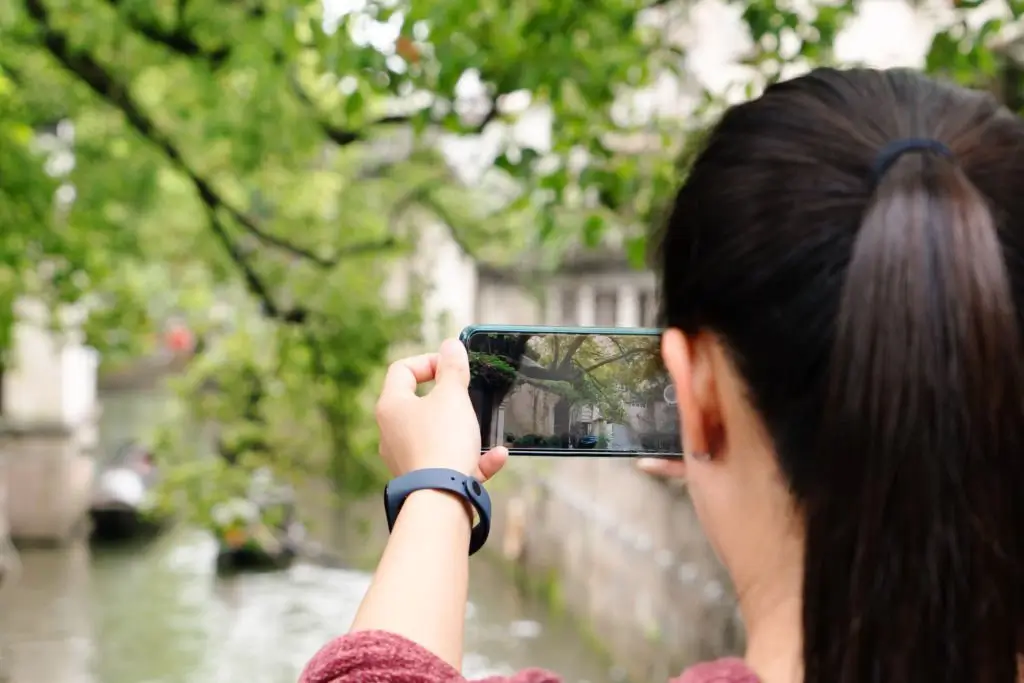
Photography isn’t just about equipment—it’s about vision and technique. Modern Android phones, even budget models like the Samsung Galaxy A51, boast advanced camera systems with features rivaling traditional DSLRs. Whether you’re aiming to improve your Instagram feed or preserve cherished memories, these Android phone photography tips will help you stand out. No need for a free Android phone photography course—these actionable strategies are your fast track to better photos.Pro Tip: Clean your camera lens regularly for sharper images.
Tip 1: Harness the Power of HDR Photography
Ever snapped a photo only to find the sky washed out or shadows hiding details? High Dynamic Range (HDR) photography is your solution. HDR captures a wider range of light and color, ensuring vibrant images with depth, even in challenging lighting conditions like sunsets or dimly lit rooms.Pro Tip: Use HDR sparingly in low-light to avoid unnatural results.
- Enable Auto HDR: Navigate to your camera app’s settings and toggle on “Auto HDR.” This feature is often found under general settings or shooting modes.
- When to Use It: Ideal for high-contrast scenes like landscapes or backlit portraits.
By enabling HDR, your photos will pop with enhanced vibrancy and detail, making every moment look professionally shot. Learn more about HDR techniques at Android Authority.
Tip 2: Master Pro Mode for Creative Control
Your Android phone’s camera app likely includes a “Pro” mode, unlocking settings like exposure, ISO, shutter speed, and white balance. These controls, typically found on DSLRs, let you fine-tune your shots for any lighting condition.Pro Tip: Start with small adjustments to avoid overexposure.
| Setting | Purpose | Best Use Case |
|---|---|---|
| Exposure | Controls light entering the lens | Dark rooms or bright outdoor scenes |
| ISO | Adjusts sensor’s light sensitivity | Low-light photography (watch for noise) |
| Shutter Speed | Controls how long the lens stays open | Motion shots (avoid blur in fast scenes) |
| White Balance | Adjusts color accuracy | Ensuring natural colors under artificial light |
Experiment with these settings to capture everything from crisp night shots to vibrant daytime portraits. For deeper insights, check out Trendsnip’s Pro Mode Guide.
Tip 3: Say No to Digital Zoom
Pinching to zoom might seem convenient, but digital zoom reduces image quality, introducing noise and blurriness. Instead, get closer to your subject or rely on your phone’s optical zoom (if available).Pro Tip: Crop images during editing for better composition.
- Move Closer: Physically approach your subject for sharper, higher-resolution images.
- Best Phones for Zoom: Devices like the Samsung Galaxy S24 Ultra offer optical zoom for crisp results.
Avoiding digital zoom ensures your photos remain sharp and professional. Discover the best Android phones for photography at The Verge.
Tip 4: Frame Like a Pro with the Rule of Thirds
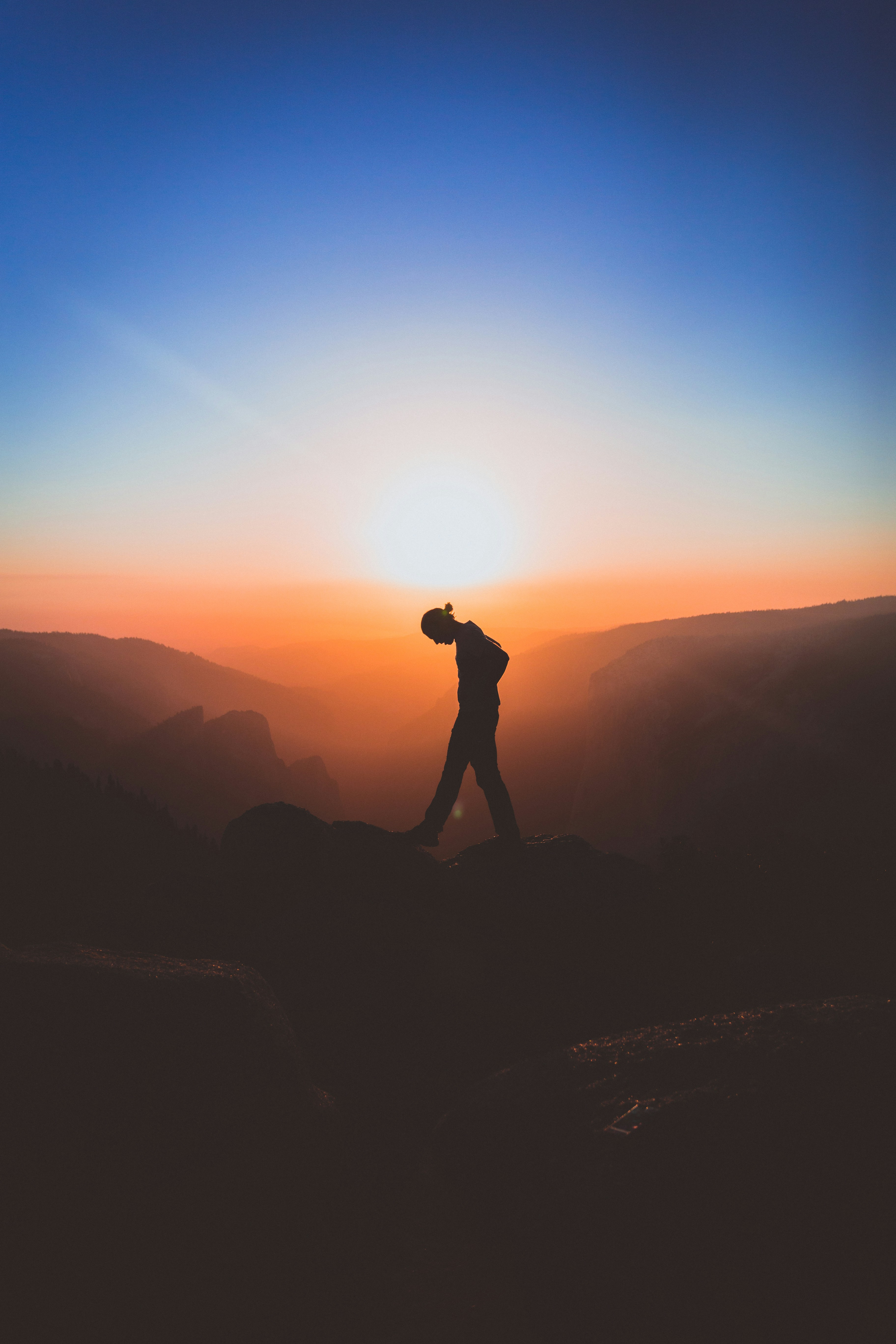
Great photography starts with composition. The rule of thirds is a simple technique that divides your frame into a 3x3 grid, guiding you to place subjects along the lines or intersections for balanced, visually appealing shots.Pro Tip: Use gridlines to create dynamic compositions.
How to Apply the Rule of Thirds
- Enable gridlines in your camera app settings.
- Position your subject along one of the vertical lines or at an intersection.
- Balance the frame by aligning horizons with horizontal lines.
This technique instantly elevates your photos, making them more engaging. Explore more composition tips at Trendsnip’s Composition Guide.
Tip 5: Explore Free Android Camera Apps
Your default camera app is great, but free Android phone camera apps like Open Camera offer advanced features like manual controls, HDR, and noise reduction—all without spending a dime.Pro Tip: Test multiple apps to find the best fit.
| App | Key Features | Best For |
|---|---|---|
| Open Camera | Manual controls, HDR, focus stacking | Beginners and advanced users |
| Google Camera | Night Sight, Portrait Mode | Low-light and portrait photography |
| Adobe Lightroom Mobile | Editing tools, RAW capture | Post-processing enthusiasts |
Download Open Camera from the Google Play Store to unlock pro-level features for free.
Choosing the Best Android Phone for Photography
While these tips work on any Android device, some phones excel in photography. For night photography, the Google Pixel 9 Pro’s Night Sight mode is unmatched. For gaming and photography, the ASUS ROG Phone 8 offers powerful performance and solid cameras. Budget-conscious? The OnePlus Nord N30 5G delivers impressive photo quality at a lower price.Pro Tip: Compare camera specs before buying.
Explore the best Android phones for night photography at PCMag.
Common Issues and Fixes
Encountering problems like an Android phone camera app disappeared? Try these quick fixes:Pro Tip: Restart your phone to fix glitches.
- Check App Drawer: Ensure the app hasn’t been disabled or hidden.
- Update Software: A system update may restore the app.
Enhance Your Skills with Accessories
While these tips require no investment, an Android phone photography kit—like a clip-on lens or tripod—can take your photos further. Affordable options are available at Amazon.Pro Tip: Use a tripod for stable shots.
With these five Android phone photography tips, you’re ready to capture stunning images that rival professional shots. Whether you’re using a budget Android phone for photography or a flagship model, mastering HDR, Pro Mode, and composition will transform your photos. For more insights, exclusive stories, and real-time updates, explore Trendsnip.
About the Author