How to Take Screenshot on Windows: A Complete Guide
Step-by-Step Instructions on How to Take a Screenshot on Windows

How to Take a Screenshot on Windows: A Complete Guide
In today’s digital world, taking screenshots has become an essential task for many users, whether for work, education, or leisure. Whether you’re capturing an important piece of information or saving an image for reference, knowing how to take a screenshot on Windows can help you streamline your workflow. In this detailed guide, we’ll explore various methods to capture a screenshot on a Windows computer, ensuring that you have the tools and knowledge to choose the best option for your needs.
1. Using the Print Screen (PrtSc) Key
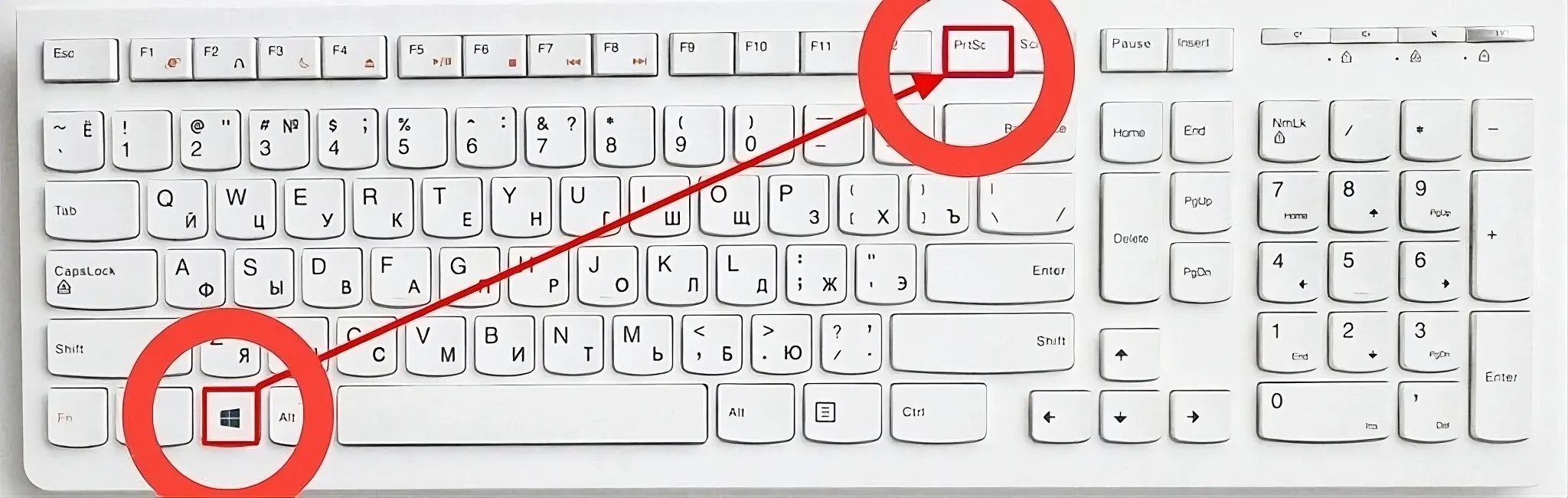
One of the simplest and quickest ways to take a screenshot on Windows is by using the Print Screen (PrtSc) key. Here’s how you can use it:
Full-Screen Screenshot
Press the PrtSc key to capture the entire screen. The screenshot is saved to your clipboard, so you need to paste it into an image editor (like Paint or Photoshop) or a document to save it.
- Steps:
- Press PrtSc.
- Open Paint or any other image editor.
- Press Ctrl + V to paste the screenshot.
- Save the image by clicking on File > Save As.
Active Window Screenshot
If you only want to capture the currently active window, press Alt + PrtSc. This will take a screenshot of the window that is currently in focus.
- Steps:
- Press Alt + PrtSc.
- Open an image editor.
- Paste the screenshot using Ctrl + V.
- Save the image.
Saving Automatically with Windows 10/11
In Windows 10 and 11, pressing Windows + PrtSc captures the full screen and saves the screenshot directly to your Pictures folder under the Screenshots subfolder.
- Steps:
- Press Windows + PrtSc.
- Find your screenshot in the Pictures > Screenshots folder.
2. Snipping Tool: A Versatile Screenshot Utility
For more control over your screenshots, Windows offers the Snipping Tool, which allows you to capture specific parts of your screen. This tool is ideal for selecting rectangular areas, freeform shapes, or even capturing the entire screen.
Steps to Use Snipping Tool:
- Open the Start Menu and type Snipping Tool in the search bar.
- Click on the tool to open it.
- Click on the New button to start a screenshot.
- Select the area you want to capture. You can choose from:
- Free-form Snip: Draw a custom shape around the area you want to capture.
- Rectangular Snip: Drag to select a rectangular area.
- Window Snip: Capture a specific window.
- Full-screen Snip: Capture the entire screen.
- After taking the screenshot, you can annotate, save, or share it.
3. Snip & Sketch: A New Screenshot Tool in Windows 10/11
In Windows 10 and 11, the Snip & Sketch tool is a more advanced alternative to the Snipping Tool. This tool gives you more options and is great for quickly annotating and sharing screenshots.
Steps to Use Snip & Sketch:
- Press Windows + Shift + S to activate the Snip & Sketch tool.
- Your screen will dim, and you can select one of the four snip types:
- Rectangular Snip
- Freeform Snip
- Window Snip
- Full-screen Snip
- After capturing the screenshot, it will be copied to the clipboard. A notification will appear to open the image in the Snip & Sketch app.
- You can annotate the screenshot, save it, or share it
4. Windows + Shift + S: A Quick Keyboard Shortcut
For users who prefer using keyboard shortcuts for a faster workflow, Windows + Shift + S is a highly efficient combination. It works with both Snipping Tool and Snip & Sketch, allowing you to take screenshots of a specific part of your screen with ease.
Steps:
- Press Windows + Shift + S.
- Select the type of snip you want to take.
- The screenshot will be copied to the clipboard and will appear in the Snip & Sketch app for further annotation, saving, or sharing.
5. Game Bar for Screenshots
If you’re into gaming or screen recording, the Xbox Game Bar is a useful tool built into Windows. It allows you to take screenshots without leaving your game or application.
Steps to Use the Game Bar for Screenshots:
- Press Windows + G to open the Game Bar.
- Click on the Camera icon or press Windows + Alt + PrtSc to take a screenshot.
- Your screenshot will be saved in the Videos > Captures folder.
6. Third-Party Screenshot Tools
If the built-in options in Windows don’t meet your needs, there are plenty of third-party screenshot tools available that offer additional features. Some popular options include:
- Greenshot: A free, open-source screenshot tool that allows you to capture, edit, and annotate screenshots.
- Lightshot: A simple tool that lets you capture part of your screen and provides easy annotation and sharing options.
- Snagit: A professional screenshot tool that offers advanced features, including scrolling capture, video capture, and image editing.
7. How to Edit and Annotate Screenshots in Windows
After taking a screenshot, you may want to make some adjustments or highlight specific parts of the image. Here are some tools you can use:
- Paint: A basic editor for cropping, resizing, and adding text.
- Snip & Sketch: A more feature-rich editor that lets you draw, highlight, and annotate with various tools.
- Photoshop or other advanced photo editors for professional editing.
Conclusion
Taking a screenshot on Windows is simple and flexible, with several built-in tools and third-party applications available to suit your needs. Whether you’re capturing the entire screen or just a small portion, Windows has you covered. By using these various methods, you can enhance your workflow, share important information, or preserve a moment for later reference.
Screenshot Shortcuts & Tips
| Tips | Shortcut |
|---|---|
| Press to capture the entire screen and save to clipboard. | PrtSc |
| Capture the active window and save to clipboard. | Alt + PrtSc |
| Automatically save a full-screen capture to the Pictures folder. | Windows + PrtSc |
| Launch Snipping Tool and select a mode for custom screenshots. | Snipping Tool |
| Quickly snip and edit using Snip & Sketch Tool. | Windows + Shift + S |
| Capture screenshots while gaming using the Game Bar. | Windows + G |
- PrtSc (Print Screen): Press PrtSc to capture the full screen and copy it to the clipboard.
- Alt + PrtSc: Use Alt + PrtSc to capture the active window.
- Windows + PrtSc: Save a screenshot directly to the Screenshots folder in the Pictures directory.
- Snipping Tool: Use the built-in Snipping Tool to capture Freeform, Rectangular, or Full-Screen shots.
- Windows + Shift + S: Open Snip & Sketch for flexible screenshot options.
- Windows + G: Use the Game Bar to take screenshots or record gameplay.
- Third-Party Tools: Tools like Lightshot or ShareX provide advanced features like cloud sharing and annotations.
- Editing Screenshots: Edit your screenshots in Paint, Snagit, or Photoshop for enhanced visuals.
- Save as PDF: Paste the screenshot in Word or an editor and export as a PDF for sharing.
About the Author